This guide identifies common Chadmo connection errors and provides direct fixes. It covers communication faults, cable damage, and standard mismatches. Operators should verify physical integrity, reset devices, and monitor logs to resolve vehicle communication issues quickly.
- Check physical connections and cable integrity before assuming a software fault.
- Reset both the charger and vehicle to clear transient communication errors.
- Use vendor diagnostics to distinguish between hardware faults and protocol mismatches.
- Maintain a log of error codes to track recurring issues.
- Verify that the charger firmware supports the vehicle model's specific requirements.
Identify the Error Code First
When a vehicle refuses to charge or a charger displays a communication fault, the error code is the starting point. Do not skip this step. The code tells you whether the problem lies in the physical layer, the data link, or the vehicle’s internal logic.
Most Chadmo devices use a standardized set of status lights or screen messages. A blinking red light often indicates a hardware fault, while a steady yellow light may point to a communication timeout. If the device has a display, write down the exact error string. If it does not, note the light pattern and duration. This information is critical for support tickets and for narrowing down the cause.
Operators sometimes blame the vehicle when the charger is at fault, or vice versa. The error code helps isolate the source. If the charger shows a “communication error” but the vehicle shows a “charging ready” status, the issue is likely in the cable or the charger’s control unit. If both devices show an error, the problem may be deeper in the protocol stack.
Check Physical Connections and Cables
The majority of connection errors involve the physical layer. A loose connector, a bent pin, or a damaged shield can break the communication channel even if the power contacts are intact.
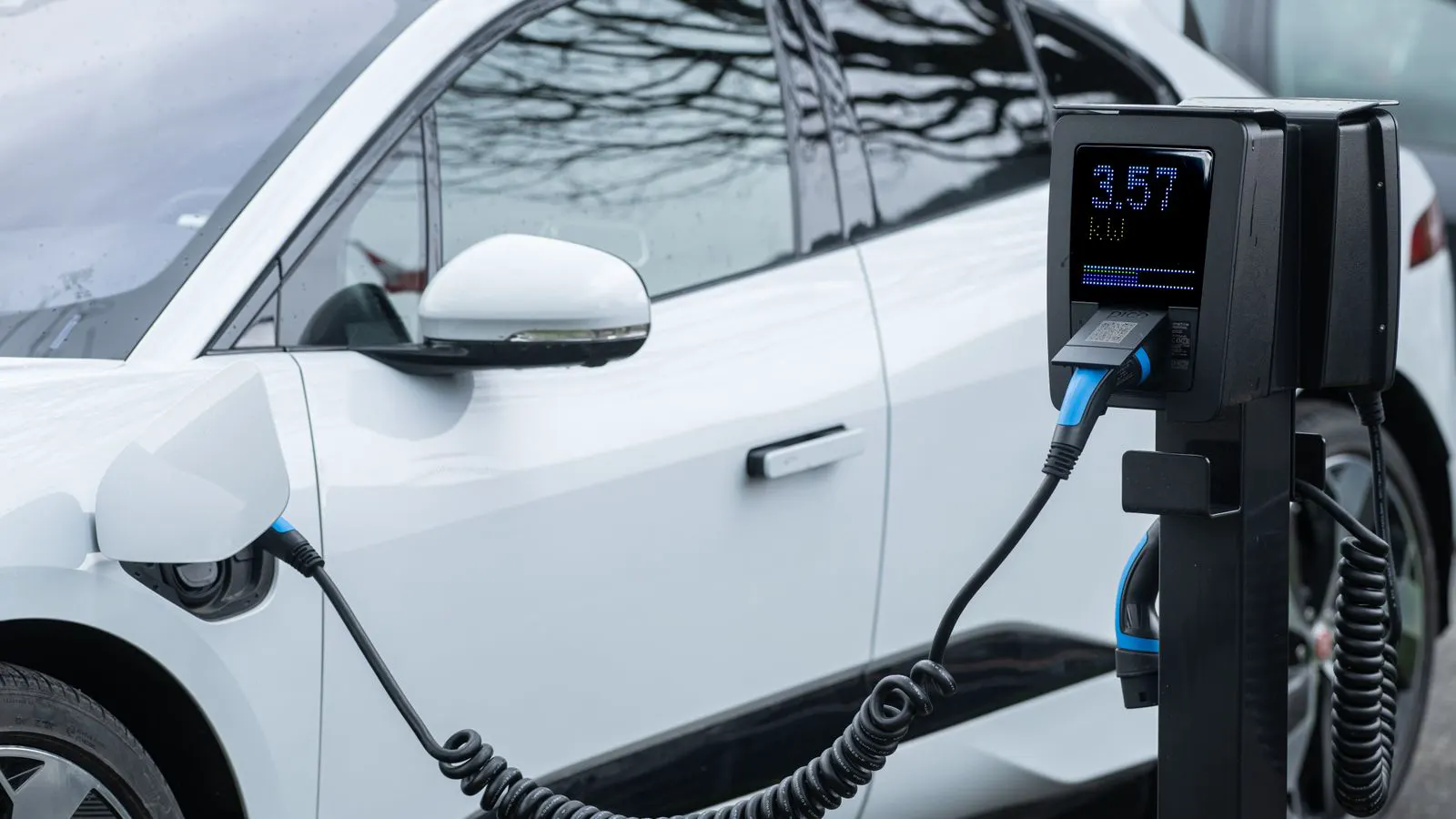
Inspect the charging cable carefully. Look for cracks in the jacket, exposed wires, or corrosion at the connector ends. The communication wires in a Chadmo cable are thin and sensitive. They do not carry high voltage, but they carry the data that tells the vehicle how much power to draw. If these wires are damaged, the vehicle will not recognize the charger.
Test with a known good cable. If the problem disappears, the cable is the culprit. If the problem remains, move to the next step. Do not assume a new cable will fix the issue. A faulty charger port or a vehicle-side fault will not resolve itself with a cable swap.
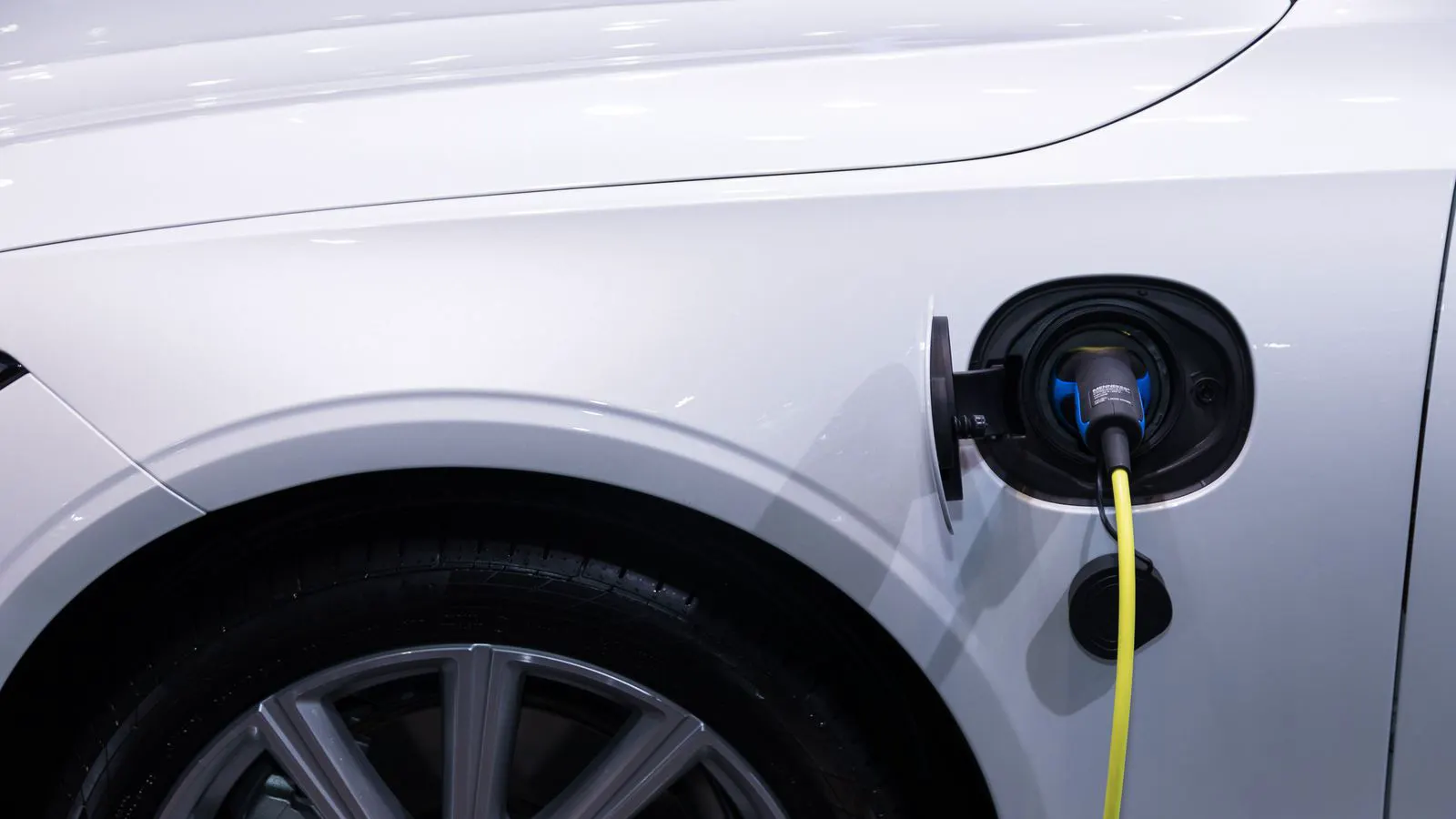
Check the port on the charger and the port on the vehicle. Look for debris, moisture, or damage to the pins. Moisture can cause intermittent connections. Allow the port to dry completely before retrying. If the port is damaged, contact the manufacturer for repair. Do not attempt to bend pins back into place without professional tools.
Verify Firmware and Software Compatibility
Firmware mismatches are a common source of communication errors. Chargers and vehicles both run software that must align to follow the standard. If the charger firmware is outdated, it may not support the latest vehicle features or error handling protocols.
Check the charger’s firmware version. This is often visible in the device menu or via the central management system. Compare it with the manufacturer’s release notes. Look for updates that mention communication improvements or bug fixes for specific vehicle models.
Update the firmware if a newer version is available. Do not update during a charging session. Power cycle the device after the update. Wait for the device to complete its self-test before connecting a vehicle. Some chargers require a full reboot to apply new protocol settings.
Also check the vehicle’s software. Some vehicles need a software update to support certain charging speeds or communication features. If the vehicle has been recently updated, check for known issues in the manufacturer’s service bulletins.
Reset the Communication Chain
Sometimes the issue is a temporary communication failure. Both the charger and the vehicle may have entered an error state and need a reset to re-establish the link.
Power cycle the charger. Turn it off at the breaker or via the main switch. Wait for all lights to go out. Turn it back on. The device will run a self-diagnostic. This usually takes a few minutes.
Power cycle the vehicle. Turn off the ignition. Open the door. Wait for the vehicle’s charging system to go into sleep mode. This may take a few minutes. Close the door and start the vehicle. Try connecting the charger again.
If the reset works, the issue was likely a transient fault. If it does not work, the problem is persistent and requires deeper investigation. Do not repeatedly reset the devices without checking for hardware faults. Frequent resets can mask underlying issues and lead to missed error codes.
Review the Central Management System Logs
Central management systems (CMS) provide a detailed log of communication events. These logs are invaluable for troubleshooting. They show the exact moment the connection failed and what state the device was in.
Log in to the CMS. Navigate to the device’s event log. Look for entries around the time of the failure. Pay attention to timestamps, error codes, and status changes. The log may show a “handshake failed” message, a “timeout” error, or a “protocol mismatch” alert.
If the log shows a handshake failure, the charger and vehicle could not agree on the communication parameters. This may be due to a firmware issue or a cable fault. If the log shows a timeout, the charger was waiting for a response from the vehicle that never came. This often points to a vehicle-side issue or a damaged communication wire.
Export the log if possible. Some CMS platforms allow you to download a CSV file. Share this file with technical support. It provides a clear record of the failure sequence and speeds up diagnosis.
Prevention Tips for Long-Term Reliability
Prevention is simpler than troubleshooting. A few regular checks can avoid most connection errors.
- Inspect cables monthly. Look for damage, corrosion, or loose connectors. Replace cables that show any sign of wear.
- Keep firmware up to date. Check for updates quarterly. Apply them during low-usage periods.
- Clean ports regularly. Use a dry, lint-free cloth to remove dust and debris from the charger and vehicle ports.
- Monitor CMS logs weekly. Review error trends and address recurring issues before they become major outages.
- Train staff on basic troubleshooting. Ensure they know how to check error codes, reset devices, and read logs.
- Maintain a spare cable and a spare charger unit. This reduces downtime when a hardware fault occurs.
Do not ignore small issues. A flickering light or a slow handshake is a warning sign. Address it early. The cost of replacing a cable or a charger unit is low compared to the cost of fleet downtime or customer complaints.
When to Call the Manufacturer
Some errors require professional intervention. If the problem persists after cable replacement, firmware updates, and resets, the fault is likely internal to the charger or the vehicle.
Contact the manufacturer’s technical support. Provide the error code, the firmware version, the CMS log, and a description of the steps you have already taken. Do not provide vague symptoms. Specific data speeds up the diagnosis.
The manufacturer may send a field service engineer. This is common for hardware faults such as a failed control board or a damaged port. Do not open the charger unless you are authorized to do so. Chargers contain high-voltage components. Improper handling can cause injury or further damage.
If the vehicle is the source of the fault, contact the vehicle manufacturer. Provide the same details. The vehicle manufacturer may have a service bulletin or a specific fix for the issue.
Frequently asked questions
How do I know if the problem is with the charger or the vehicle?
Use the error code and CMS logs. If the charger shows a hardware fault, the problem is likely with the charger. If the charger shows a communication timeout but the vehicle is ready, check the cable. If both show errors, test with a known good vehicle and a known good charger.
Can a damaged cable cause a communication error?
Yes. The communication wires in a Chadmo cable are separate from the power wires. If these wires are damaged, the vehicle will not receive the data needed to start charging. Always inspect the cable before blaming the vehicle.
Is it safe to reset the charger during a charging session?
No. Always stop the session and unplug the cable before resetting. Power cycling during a session can damage the device or the vehicle's charging system.
How often should I check the firmware?
Check quarterly. Manufacturers release updates to fix bugs and improve compatibility. Applying updates regularly keeps the device aligned with the standard and reduces communication errors.
What should I do if the port is damaged?
Do not attempt to repair it yourself. Contact the manufacturer for professional repair. Damaged pins or a cracked housing can cause further faults or safety hazards.