When a charger goes offline, the issue usually lies in the local network, power supply, or communication protocol. This guide walks through diagnostic steps to isolate hardware faults from software configuration errors and restore connectivity to your EV charging software.
- Verify physical power and network cables before assuming a software failure.
- Check IP configuration and DHCP leases to rule out local network conflicts.
- Review communication logs in the EV charging software to identify protocol timeouts.
- Standardize firmware and network settings across the fleet to prevent future drift.
A charger showing as offline in your dashboard is more than a cosmetic issue. It blocks revenue, hides usage data, and can mask deeper infrastructure problems. Most connectivity failures trace back to a small set of repeatable causes. This guide walks through the diagnostic path from the charger base to the cloud interface.
Is the Charger Actually Powered On?
Start at the physical layer before touching any software. A charger without power will never appear in the charging management system, regardless of network settings. Check the status lights on the charger unit. If the indicator is dark, the unit is likely off, in a fault state, or disconnected from its breaker.
Inspect the power supply connections. Look for tripped breakers, loose terminal lugs, or damaged power cords. In outdoor installations, moisture ingress is a common culprit. Check the gasket around the connector port. A small leak can corrode the internal contacts and interrupt the main power feed.
If the charger powers on but the network light does not blink, the issue is isolated to the communication hardware. Do not proceed to software checks until you confirm the unit is receiving power and the local indicator confirms a network link attempt.
What Does the Local Network Status Show?
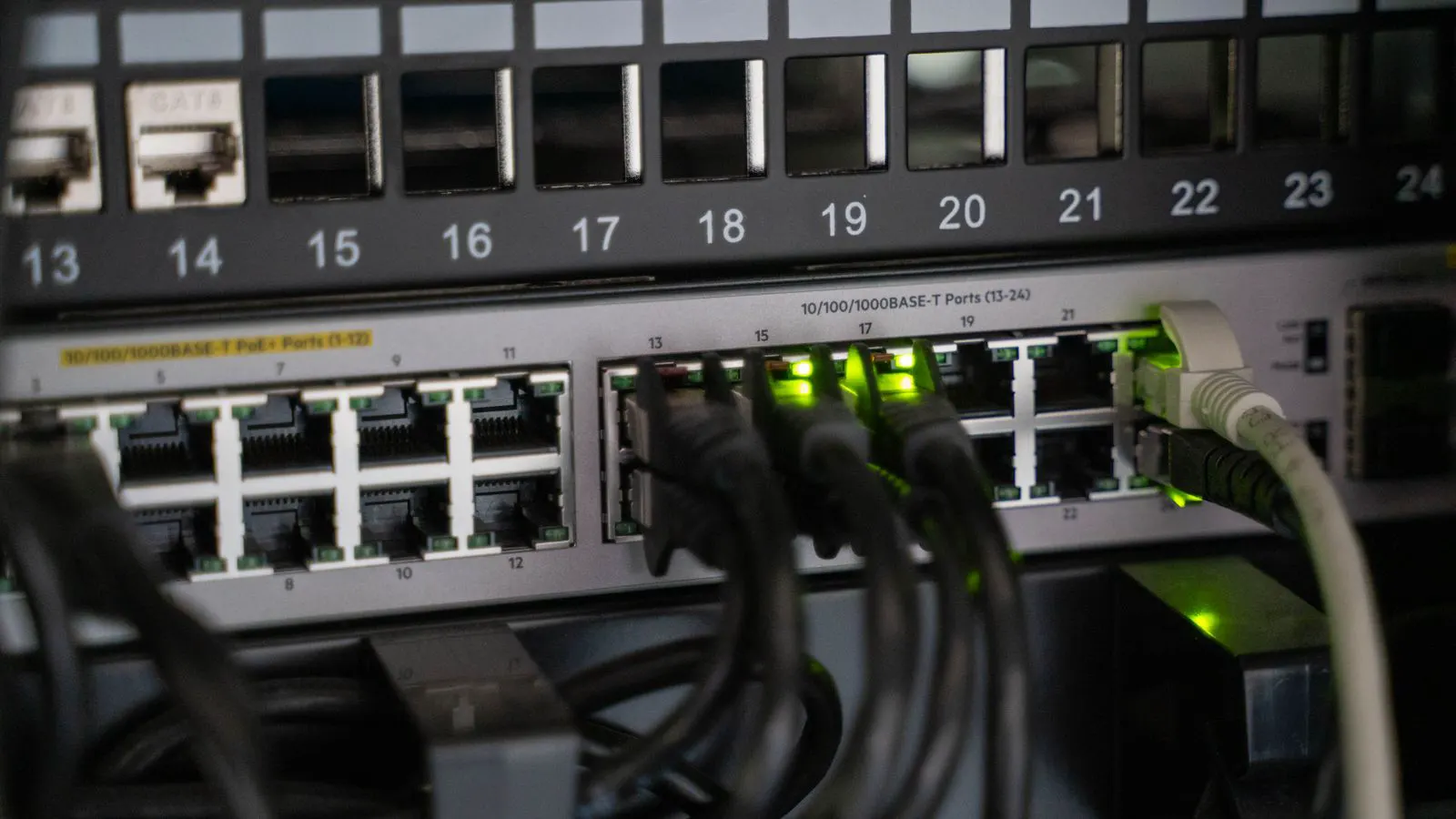
Network connectivity is the most frequent cause of offline status in a charging management system. The charger needs a stable link to the router or switch. Check the physical network cable first. A twisted pair cable with a broken pin will not show a link light.
Move to the local network configuration. Most chargers use DHCP to obtain an IP address. Verify that the charger has received an IP address from the router. If it shows a 169.254 address, it failed to reach the DHCP server. This usually indicates a cable fault, a blocked port, or a misconfigured router.
Check for IP conflicts. If two devices on the same subnet hold the same static IP, communication fails. Review the router’s ARP table. Look for duplicate IP entries associated with the charger’s MAC address. If a conflict exists, assign a unique static IP to the charger or reserve its MAC address in the DHCP pool.
Are the Communication Protocols Aligned?
Once the charger has an IP address, the problem may lie in the data layer. The charger and the charging management system must speak the same language. Different hardware vendors use different communication methods. Some use proprietary cloud APIs, while others support open standards.
Check the EV charging software settings for the specific device. Ensure the API key, token, or certificate is valid and matches the hardware model. An expired certificate will cause immediate disconnection. Renew the certificate if the date has passed.
Review the communication logs in the EV charging software. Look for specific error codes. A “timeout” error suggests the charger is sending data but the server is not receiving it. A “rejected” error suggests the server received the data but the authentication failed. These distinct messages point to different fixes.
How Do You Isolate Hardware From Software?
Sometimes the charger works fine, but the cloud interface fails to display it. To separate the two, test the charger independently of the main network. Connect the charger to a local router on a separate subnet. If the charger appears in the local dashboard or a diagnostic tool, the hardware is healthy. The issue lies in the main network path, firewall rules, or the cloud connection.
If the charger remains invisible on the local network, the communication module inside the charger is likely faulty. This can happen after a power surge or a firmware update that bricked the radio. In this case, the fix is a hardware replacement or a factory reset.
Check the firewall rules on the main router. The charger must be able to send outbound traffic to the cloud server. If the network administrator recently changed firewall policies, the charger may be blocked. Ensure the relevant ports are open for outbound traffic. Do not open inbound ports unless absolutely necessary for security reasons.
Common Symptoms and Fixes
The table below summarizes the most frequent offline scenarios. Match the symptom you observe to the likely cause and apply the corresponding fix.
| Symptom | Likely cause | What to do |
|---|---|---|
| No status lights at all | Power failure or tripped breaker | Check breaker, verify power cable connection, inspect for damaged plug. |
| Network light on, no IP address | DHCP failure or cable fault | Check network cable, test with a different cable, verify router DHCP pool. |
| Charger online but no data sync | Firewall blocking outbound traffic | Review router firewall rules, ensure correct ports are open. |
| Intermittent offline status | IP conflict or weak signal | Assign static IP, check for duplicate MAC addresses, inspect antenna placement. |
| Error code 401 in software logs | Expired API key or certificate | Update authentication credentials in the charger and cloud interface. |
| Works on local network, fails in cloud | Wrong server endpoint or region | Verify cloud server address matches the charger’s configured region. |
How Do You Prevent Recurring Connectivity Issues?
Prevention is cheaper than diagnosis. Standardize your network setup across all charger locations. Use the same firmware version for all units of the same model. Mixed firmware versions often cause subtle communication errors that only appear under load.
Document the network configuration for every site. Record the static IPs, MAC addresses, and DHCP reservations. When a new charger is installed, plug it into the documented configuration rather than relying on defaults. This prevents IP conflicts and makes troubleshooting faster.
Monitor the charging management system proactively. Set up alerts for offline status rather than waiting for a user to report a dead charger. A daily report showing devices that have been offline for more than two hours helps identify slow failures before they become total outages.
Keep the local network hardware healthy. Router firmware updates can introduce regressions. Test updates in a non-production environment first. Replace aging network cables every few years, especially in outdoor or high-heat environments where insulation degrades faster.
When Should You Call the Vendor?
Some issues are not fixable on the site. If the charger powers on, has a network link, and passes all local tests but remains offline in the cloud, the internal communication board may be damaged. This is a hardware fault that requires vendor support.
Before calling, gather the diagnostic data. Capture the error logs from the EV charging software. Record the charger’s serial number and firmware version. Screenshot the network status indicators. Providing this information speeds up the support process and reduces the time the charger spends out of service.
If you suspect a firmware bug, check the vendor’s release notes. Sometimes an update introduces a regression that causes connectivity loss. Roll back to the previous stable version if the issue began immediately after an update.
Final Checks Before Closing the Case
Once the charger is back online, verify that data is flowing correctly. Check that new sessions are appearing in the dashboard. Confirm that billing records are being generated. Test the emergency stop function to ensure the hardware is fully responsive.
Do not close the case until you have ruled out environmental factors. If the issue was a loose cable, tighten it and add a strain relief clip. If it was a tripped breaker, check the breaker rating against the charger’s consumption. A breaker that is too small will trip under heavy load and cause recurring offline events.
A reliable charging management system depends on every node in the chain working correctly. From the breaker to the cloud, each link must be verified. When a charger goes offline, follow the path from power to network to software. Most failures resolve with the first two checks. The rest is a matter of clean configuration and proactive monitoring.
Frequently asked questions
Can a single charger be offline while the rest of the fleet stays online?
Yes. This usually points to a local issue like a cable fault, IP conflict, or a specific unit hardware failure rather than a cloud-wide outage.
What is the safest first step when a charger goes offline?
Check the physical power and network indicators on the unit. Confirming the charger is powered and has a local link before touching software saves significant time.
Does a static IP address always prevent offline issues?
No. A static IP prevents DHCP conflicts but does not fix cable faults, firewall blocks, or authentication errors. It is one part of a stable network setup.
How often should I check network cables at outdoor sites?
Outdoor cables are exposed to weather. Inspect them during routine maintenance, at least once a year, or immediately after extreme weather events.
If a charger works on a local network but not in the cloud, what should I check first?
Check the cloud server endpoint and authentication credentials. Verify the API key is active and the server address matches the charger's region setting.